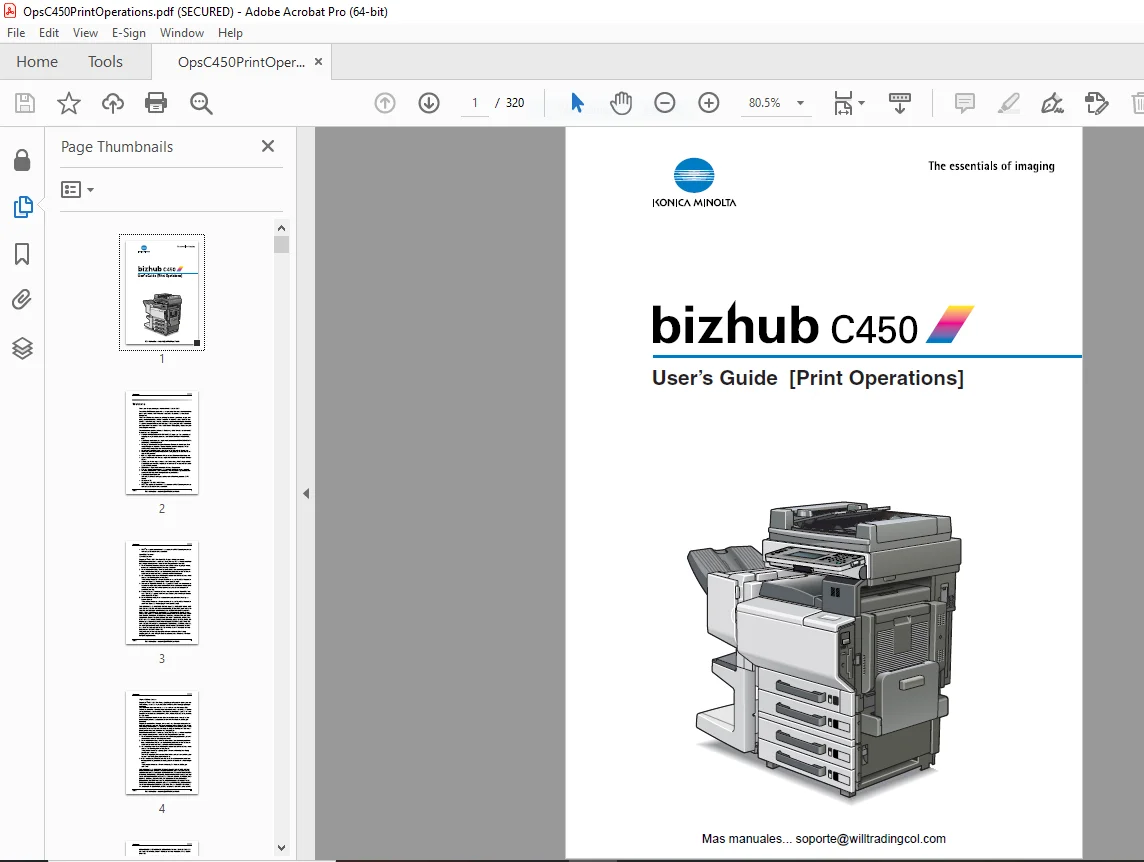
Konica Minolta bizhub C450 Print Operations Users Manual – PDF
$28.95
Konica Minolta bizhub C450 Print Operations Users Manual – PDF DOWNLOAD
Description
Konica Minolta bizhub C450 Print Operations Users Manual – PDF DOWNLOAD
FILE DETAILS:
Konica Minolta bizhub C450 Print Operations Users Manual – PDF DOWNLOAD
Language : English
Pages : 320
Downloadable : Yes
File Type : PDF
IMAGES PREVIEW OF THE MANUAL:
TABLE OF CONTENTS:
Konica Minolta bizhub C450 Print Operations Users Manual – PDF DOWNLOAD
Welcome 2
Copyright 5
SOFTWARE LICENSE AGREEMENT 6
Contents 8
About this User’s Guide 18
C450 User’s Guides 18
Notations 18
Screen Images in This User’s Guide 18
Using This User’s Guide 19
1 Overview 20
11 Printer Controller CD-ROM Configuration 20
12 Printer Controller 24
Role of the Printer Controller 24
Available Printer Controller Functions 24
Machine Modes 25
Printing Flow 26
Flow of the Computer Faxing Operation 27
13 Operation Environment 28
Compatible Computers and Operating Systems 28
Compatible Interfaces 29
14 Setting Up the System 31
To set up the printing system 31
2 Installing the Printer Driver 34
21 Printer Drivers and Supported Operating Systems 34
22 When Used With Windows 35
Automatic Installation Using the Installer 36
To install the printer driver 37
Installing the Printer Driver Using the Add Printer Wizard 40
For Windows XP/Server 2003 40
For Windows 98/Me/2000/NT 40 43
Installing the Printer Driver Using Plug and Play 45
For Windows 98 45
For Windows Me/2000 46
For Windows XP/Server 2003 47
Uninstalling the Printer Driver 48
23 When Used With Macintosh 49
Installing the Printer Driver 49
For Mac OS X 49
Selecting a Printer 51
For Mac OS X 51
For Mac OS 92 52
Uninstalling the Printer Driver 54
For Mac OS X 54
For Mac OS 92 55
3 Setting Up Network Printing 56
31 Overview of Network Functions 56
Network Functions 56
Features of the Network Functions 57
Network Connection Methods That Can Be Selected in Each Windows Operating System 58
Network Printing from a Windows Operating System 58
Network Printing in a NetWare Environment 59
32 Setting the IP Address for This Machine 60
Setting the IP Address 60
33 Accessing PageScope Web Connection 62
To access PageScope Web Connection 62
34 SMB Printing 63
Operations on This Machine 63
Printer Driver Settings 64
For Windows 98/Me 64
For Windows 2000/XP/NT 40/Server 2003 64
35 LPR Printing 65
Operations on This Machine 65
Printer Driver Settings 65
For Windows 2000/XP/Server 2003 65
For Windows NT 40 66
36 IPP Printing (Windows 2000/XP/Server 2003) 67
Operations on This Machine 67
Installing the Printer Driver 68
37 Printing With NetWare 70
Network Printing in a NetWare Environment 70
For Remote Printer Mode With NetWare 4x Bindery Emulation 70
For Print Server Mode With NetWare 4x Bindery Emulation 72
For NetWare 4x Remote Printer Mode (NDS) 74
For NetWare 4x/5x/6 Print Server Mode (NDS) 75
For NetWare 5x/6 Novell Distributed Print Service (NDPS) 77
Setting Up a Client (Windows) Settings When Using the NetWare Server 78
38 Printing With Macintosh 79
Operations on This Machine 79
Setting the Macintosh computer 80
For Mac OS X 80
For Mac OS 92 81
4 Various Printing Methods 82
41 Printing Operations 82
For Windows 82
Test Printing 83
For Macintosh 84
For Mac OS X 84
For Mac OS 92 85
42 Setting the Printing Functions 86
Function List 86
Function Overview 88
Orientation 88
Original Size and Output Size 89
Zoom (Enlargement and Reduction) 90
Input Tray (Paper Source) 91
Paper Type (Media) 91
Print Type (Duplex Printing/Booklet Printing) 92
Printing Multiple Pages on One Page 93
Stapling and Hole Punching 94
Output Method (Job Management) 95
Sorting (Collating) and Classifying (Offset) 95
Skip Blank Pages (Saving Paper) 96
Authentication 96
Front Cover, Back Cover, and Interleaf Settings 96
Overlay 97
Watermark 97
Quality Adjustment 98
Use Printer Fonts (Substitute Fonts) 98
Account Track 98
For Windows 99
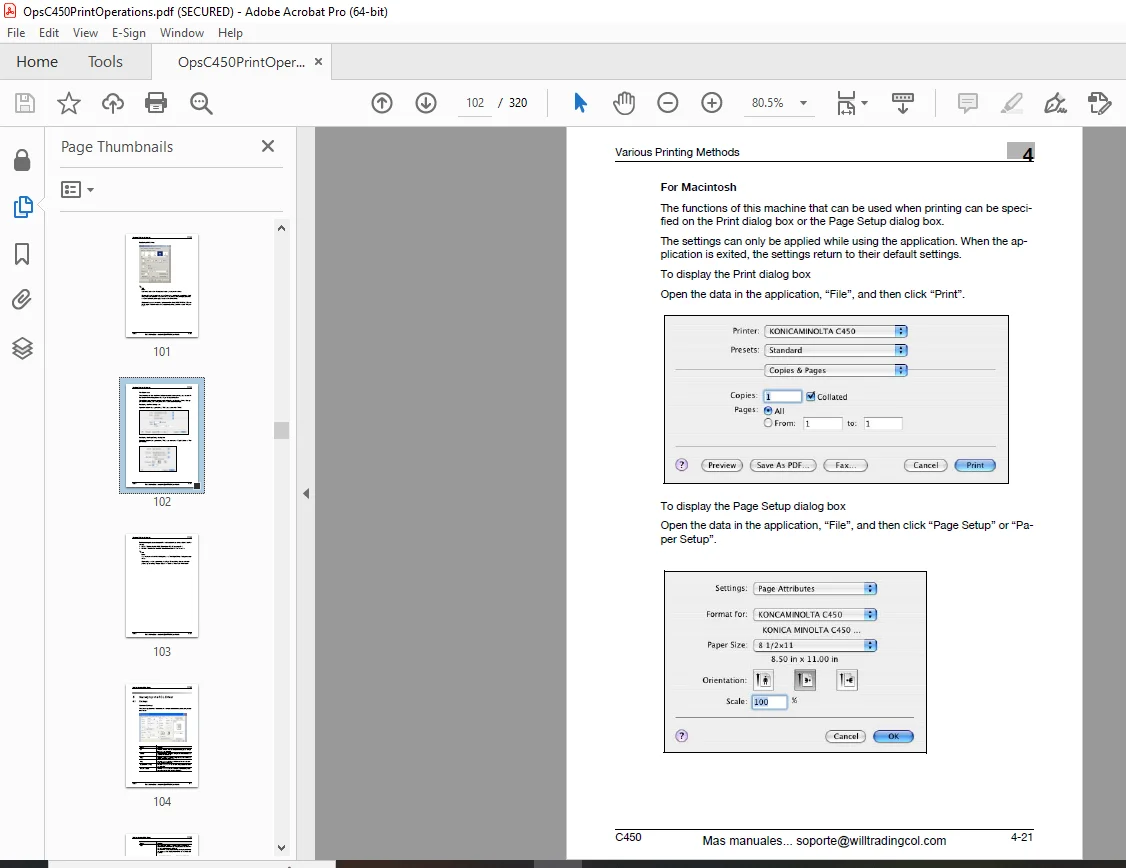
For Macintosh102
5 Setting Up the PCL Driver104
51 Settings104
Common Settings104
Setup Tab105
Per Page Setting Tab105
Overlay Tab106
Watermark Tab106
Quality Tab106
Font Tab106
FAX Tab106
Version Tab107
Option Tab107
52 Specifying the Setup Tab Settings108
Printing to Suit the Paper Size108
Saving a Custom Size109
Selecting the Paper Source110
Setting the Paper Source of the Paper Type110
Specifying Duplex/Booklet Printing111
Printing Multiple Pages on One Page (N in 1)112
Setting the File Margin113
Stapling114
Hole Punching114
Selecting the Output Method115
Save in User Box116
Proof and Printing117
Specifying User Authentication Settings118
Specifying Account Track Settings119
53 Specifying the Per Page Setting Tab Settings120
Printing Documents with a Front Cover/Back Cover120
Printing Multiple Pages121
Per Page Setting121
54 Specifying the Overlay Tab Settings122
Printing Different Original Documents Together (Overlay)122
Editing Forms124
Creating Forms124
55 Specifying the Watermark Tab Settings126
Printing a Watermark126
Editing a Watermark127
Printing the Document Number128
56 Specifying the Quality Tab Settings129
Specifying Settings129
57 Specifying the Font Tab Settings131
Specifying Settings131
58 Specifying the FAX Tab Settings132
Sending a Fax132
Creating a Cover Sheet137
Registering a Recipient in the Phonebook141
Registering Recipient Information141
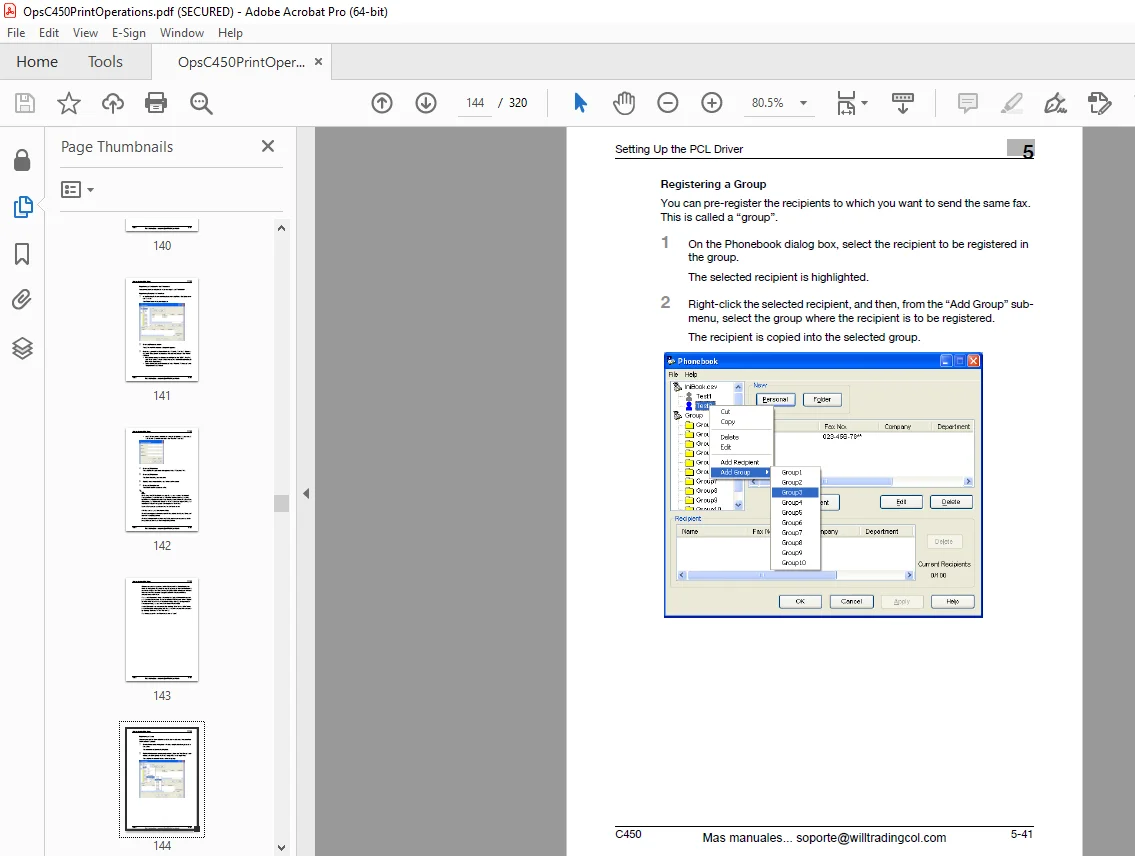
Registering a Group144
59 Specifying the Option Tab Settings146
Specifying Settings146
510 Saving the Driver Settings147
Saving the Driver Settings147
Restore the Settings148
Deleting the Settings148
6 Setting Up the PostScript Driver (Windows)150
61 Settings150
Common Settings150
Setup Tab151
Layout Tab152
Per Page Setting Tab152
Watermark Tab152
Quality Tab153
Advanced Tab153
Device Settings Tab153
Option Tab154
Settings Tab155
62 Specifying the Setup Tab Settings156
Printing to Suit the Paper Size156
Saving a Custom Size157
Selecting the Output Method158
Secured Printing159
Save in User Box160
Proof and Printing160
Specifying User Authentication Settings161
Specifying Account Track Settings162
63 Specifying the Layout Tab Settings163
Printing Multiple Pages on One Page (N in 1)163
Duplex Printing165
Setting the File Margin165
Stapling165
Hole Punching166
64 Specifying the Per Page Setting Tab Settings167
Printing Documents with a Front Cover/Back Cover167
65 Specifying the Watermark Tab Settings168
Printing a Watermark168
Editing a Watermark169
66 Specifying the Quality Tab Settings170
Specifying Settings170
Font Settings171
67 Specifying the Option Tab Settings172
Specifying Settings172
68 Saving the Driver Settings174
Saving the Driver Settings174
Restore the Settings175
Changing the Settings176
7 Setting Up the PPD Driver (Windows)178
71 Settings178
Paper Tab178
Graphics Tab179
Device Options Tab179
PostScript Tab180
72 Specifying the Paper Tab Settings181
Specifying Settings181
73 Specifying the Device Options Tab Settings182
Specifying Setting182
74 Specifying the Options184
Specifying Settings184
8 Setting Up the PPD Driver (Mac OS 92)186
81 Settings186
Page Setup Dialog Box186
Print Dialog Box188
82 Page Setup191
Page Attributes (Basic Settings)191
Custom Page Sizes192
PostScript Options193
83 Printing194
General (Basic Settings)194
Layout (Printing Multiple Pages on One Page)195
Printer Specific Options (Finishing Options 1 to 4)196
84 Setting Options198
Specifying Settings198
9 Setting Up the PPD Driver (Mac OS X)200
91 Settings200
Page Setup Dialog Box200
Print Dialog Box201
92 Page Setup204
Page Attributes (Basic Settings)204
Custom Paper Size205
93 Printing206
Copies & Pages (General Settings)206
Layout (Printing Multiple Pages on One Page)207
Paper Feed208
Security208
Finishing210
Quality211
Setup213
94 Setting Options214
Specifying Settings214
95 Saving the Driver Settings215
Saving the Driver Settings215
Restore the settings215
Changing the settings216
10 Various Settings218
101 Print Settings in Utility Mode218
Default Settings218
To display the Utility Setting screen218
PDL Setting219
Number of Sets220
Original Direction221
Spool Setting222
Paper Size Change223
Paper Tray224
Default Paper Size226
2-Sided Print227
Bind Direction228
Staple229
Hole-Punch230
Typeface231
Symbol Set232
Font Size233
Line/Page234
CR/LF Mapping235
PS Error Print236
Print Reports237
102 Printer Settings in Administrator Mode238
To display the Administrator Setting screen238
Print/Fax Output Settings239
Local I/F Timeout241
Parallel I/F242
Parallel/USB243
Capture Print Data244
103 Using PageScope Web Connection245
System Requirements245
Accessing PageScope Web Connection245
Page Structure246
Logging In to Administrator Mode248
Cache Function of Web Browsers250
On Internet Explorer250
On Netscape250
User Mode250
System Tab251
System Tab – Summary251
System Tab – Device Information252
System Tab – Detail – Input Tray253
System Tab – Detail – Output Tray254
System Tab – Detail – HDD255
System Tab – Detail – Interface Information256
System Tab – Detail – Consumables257
System Tab – Counter259
System Tab – Online Assistance260
Job Tab261
Job Tab – Active Job261
Job Tab – Done Job List262
Print Tab263
Print Tab – General Settings263
Print Tab – Report Types264
Administrator Mode265
Basic Operation265
System Tab265
System Tab – Date/Time- Manual Setting266
System Tab – Date/Time – NTP Setting267
System Tab – Administrator Password268
System Tab – Device Information269
System Tab – Online Assistance270
System Tab – Import/Export271
System Tab – Maintenance – Network Setting Clear272
System Tab – Maintenance – Reset273
System Tab – E-mail Alert274
Print Tab275
Print Tab – Interface275
Print Tab – Default Settings – General Settings276
Print Tab – Default Settings – PCL Settings277
Print Tab – Default Settings – PS Settings278
Scan Tab278
Network Tab279
Network Tab – TCP/IP – TCP/IP279
Network Tab – TCP/IP – IP Address Filtering281
Network Tab – NetWare – NetWare282
Network Tab – NetWare – NetWare Status284
Network Tab – IPP285
Network Tab – SNMP286
Network Tab – SMB – Print287
Network Tab – AppleTalk288
Network Tab – SSL/TLS289
Network Tab – Authentication289
104 Print Job Management290
Specifying Job Operations290
Specifying Settings (for Windows)290
Specifying Settings (for Mac OS X)292
Job Storage293
Recalling Jobs293
Printing With This Machine When Account Track Settings Have Been Applied296
Specifying Settings (for Windows)297
Specifying Settings (for Mac OS X)298
Job Operations in PageScope Web Connection298
11 Troubleshooting300
111 Unable To Print300
112 Unable To Specify Desired Settings or Unable To Print as Specified302
12 Appendix304
121 Specifications304
122 Configuration Page306
123 Font List307
PCL Font List307
PS Font List308
TEST Page309
124 Glossary310
125 Index315
A to G315
H to P316
Q to S317
T to Z318
DESCRIPTION:
Konica Minolta bizhub C450 Print Operations Users Manual – PDF DOWNLOAD
INTRODUCTION:
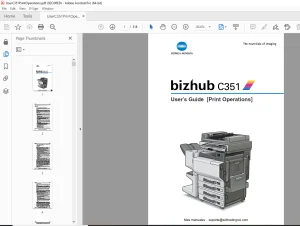
- The bizhub C450 is equipped with an integrated printer controller that allows you to print directly from Windows-compatible computers or Macintosh computers.
- This User’s Guide describes the printing functions, operations, usage, and safety precautions of the printer controller. In order to ensure that this ma- chine is used efficiently, carefully read this manual before using the machine. In order to ensure that this machine is used safely, carefully read “Installation and Operation Precautions” in the C450 User’s Guide [Copy Operations] be- fore using the machine.
- The illustrations used in this User’s Guide may differ from the actual model.
Trademarks and Copyright :
- KONICA MINOLTA, the KONICA MINOLTA logo, and The essentials of imaging are registered trademarks of KONICA MINOLTA HOLDINGS, INC.
- Page Scope and bizhub are registered trademarks of KONICA MINOLTA BUSINESS TECHNOLOGIES. • Netscape Communications, the Netscape Communications logo, Net- scape Navigator, Netscape Communicator, and Netscape are trade- marks of Netscape Communications Corporation.
- Novell and Novell NetWare are registered trademarks of Novell, Inc.
- Microsoft, Windows, and Windows NT are registered trademarks of Microsoft Corporation.
- IBM is a registered trademark of International Business Machines, Inc.
- Apple, Macintosh, and Mac are registered trademarks of Apple Compu- ter, Inc.
- Adobe, the Adobe logo, Acrobat, the Acrobat logo, PostScript, and the PostScript logo are either registered trademarks or trademarks of Adobe Systems Incorporated.
- Ethernet is a registered trademark of Xerox Corporation.
- PCL is a registered trademark of Hewlett-Packard Company Limited.
- All other product and brand names are trademarks or registered trade- marks of their respective companies or organizations.
- Page Scope Box Operator: This software is based in part on the work of the Independent JPEG Group.
- Compact-VJE Copyright 1986-2003 VACS Corp.
- RC4® is a registered trademark or trademark of RSA Security Inc. in the United States and/or other countries.
G.B 28/02/25