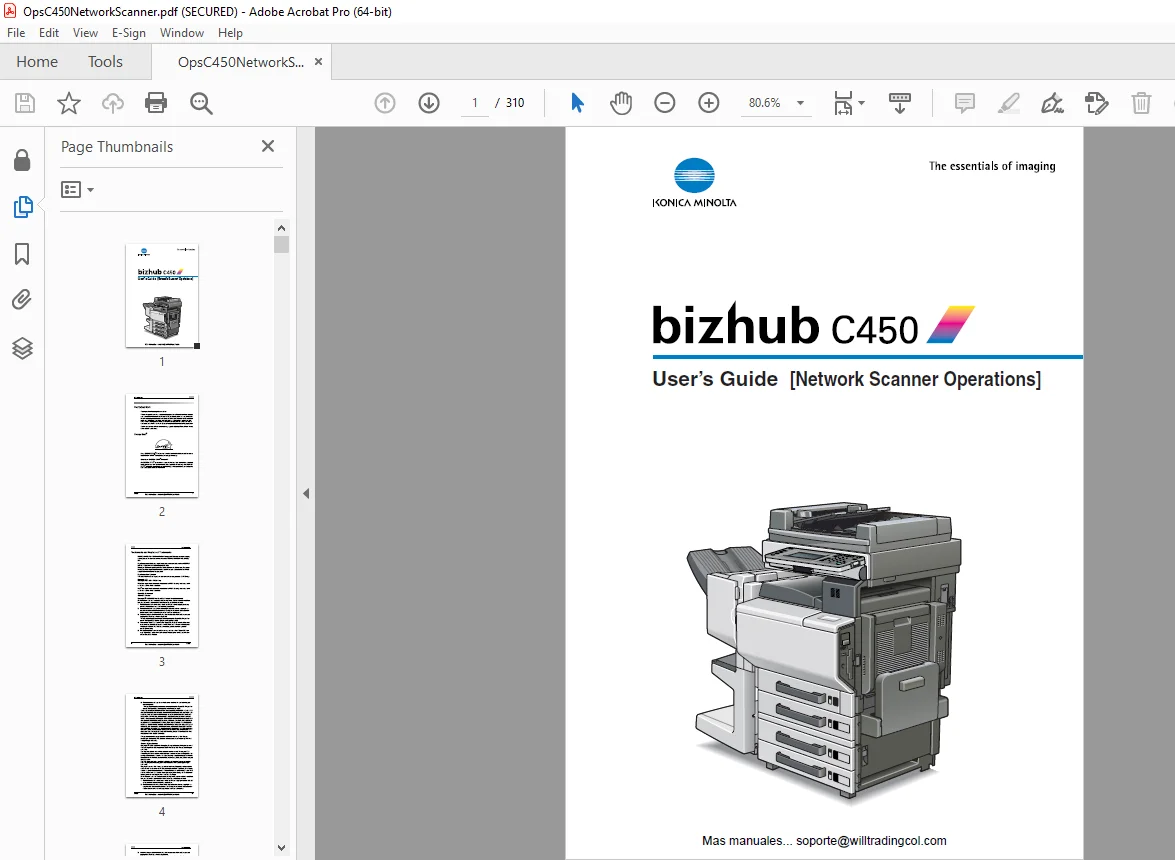
Konica Minolta bizhub C450 Network Scanner Operations Users Manual – PDF
$28.95
Konica Minolta bizhub C450 Network Scanner Operations Users Manual – PDF DOWNLOAD
Description
Konica Minolta bizhub C450 Network Scanner Operations Users Manual – PDF DOWNLOAD
FILE DETAILS:
Konica Minolta bizhub C450 Network Scanner Operations Users Manual – PDF DOWNLOAD
Language : English
Pages : 310
Downloadable : Yes
File Type : PDF
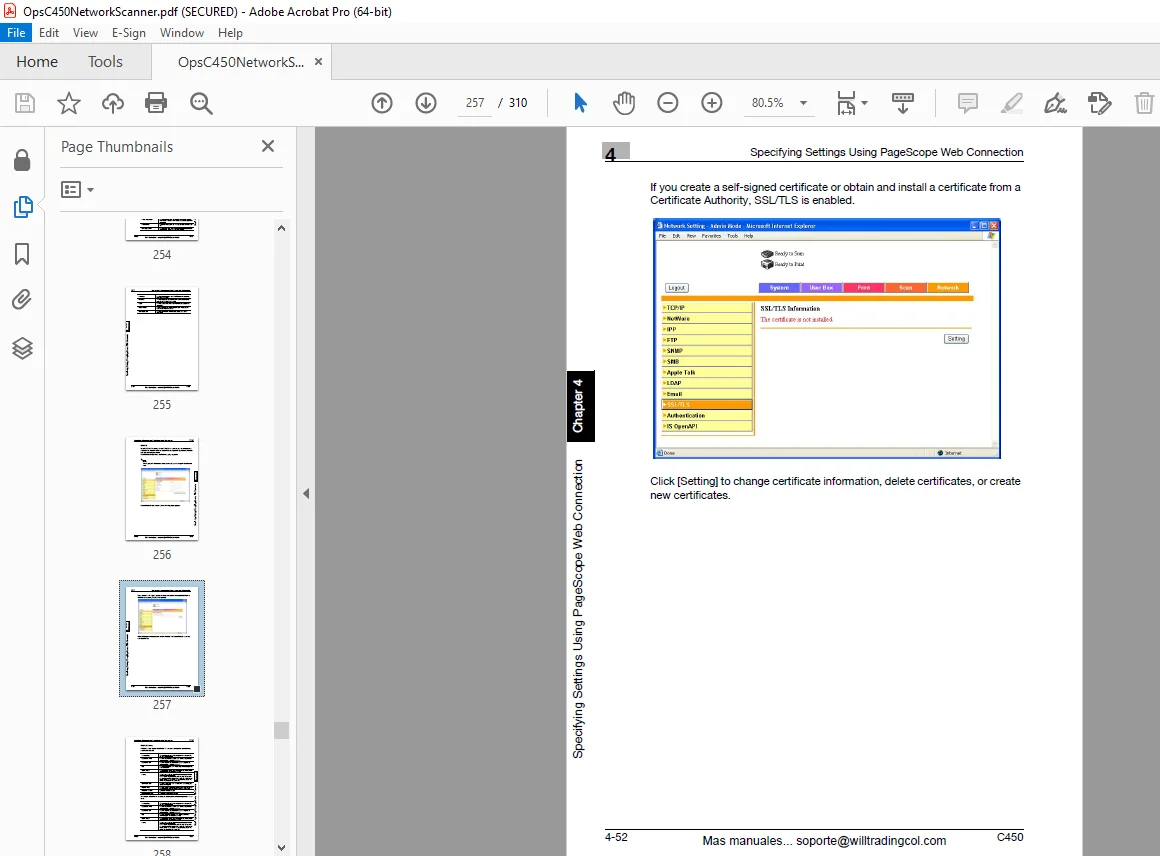
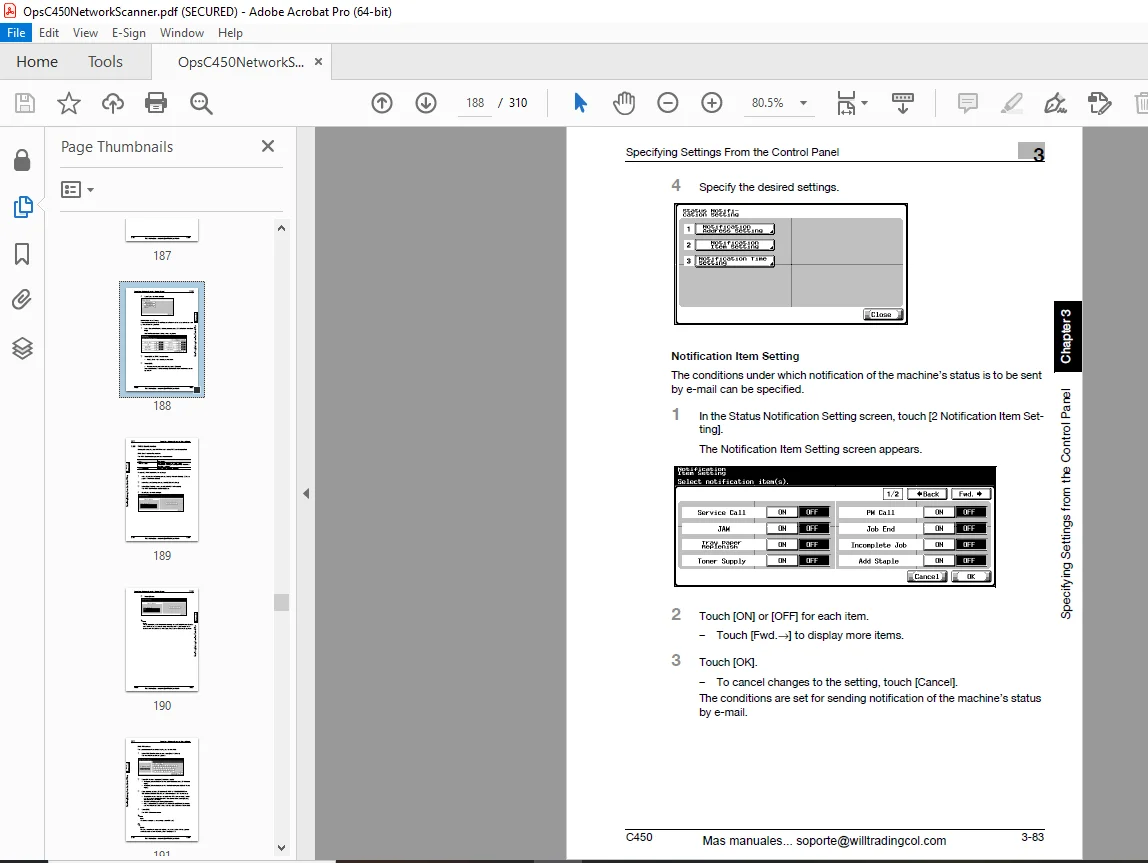
IMAGES PREVIEW OF THE MANUAL:
TABLE OF CONTENTS:
Konica Minolta bizhub C450 Network Scanner Operations Users Manual – PDF DOWNLOAD
Introduction 2
Energy Star® 2
What is an ENERGY STAR® Product? 2
Trademarks and Registered Trademarks 3
Contents 6
About This Manual 14
Structure of the Manual 14
Notation 14
Explanation of Manual Conventions 15
User’s Guides 16
User’s Guide [Copy Operations] 16
User’s Guide [Network Scanner Operations] <this manual> 16
User’s Guide [Box Operations] 16
User’s Guide [Enlarge Display Operations] 16
User’s Guide [Facsimile Operations] 16
User’s Guide [Print Operations] 16
Quick Guide [Print Operations] 17
CD-ROM Configuration 18
1 Before Using the Scan Functions 23
11 Environment Required for Using the Scan Functions 23
12 Available Scanning Functions 24
Sending the Scanned Data in an E-Mail Message 24
Sending the Scanned Data as Files (FTP) 25
Sending the Scanned Data to a Computer on the Network (SMB) 26
Saving the Scanned Data in Boxes 27
Using the Machine as a Scanner 28
13 Settings for Using Network/Scanning Functions 29
Specifying Network Settings 29
Registering Destinations and Specifying Their Settings 29
Setting the From Address 30
Specifying the Scan Settings 30
Specifying Program Settings 31
Specifying Default Scan Settings 31
14 Connecting to the Network 32
Network Connection 32
15 Flow Chart of Setup and Scanning Operations 33
2 Scanning Documents 35
21 Control Panel 35
22 Displaying the Scan Screen 38
23 Sending Data in an E-Mail Message (Scan to E-Mail) 39
Scan to E-Mail 39
Using Programs 39
Selecting Group Addresses 42
Selecting Destinations From the Address Book 45
Searching the Destination 46
To search the destination 47
Entering the Addresses Directly 48
24 Sending Data to a Server (Scan to FTP) 51
Scan to FTP 51
Using Programs 51
Selecting Group Addresses 53
Selecting Destinations From the Address Book 56
Entering the Addresses Directly 59
25 Sending Data to a PC on the Network (Scan to SMB) 63
Scan to SMB 63
Using Programs 63
Selecting Group Addresses 65
Selecting Destinations From the Address Book 68
Entering the Addresses Directly 71
26 Specifying the Scan Settings 74
Available Settings 74
File Type 75
To specify the File Type settings 76
Resolution 77
Simplex/Duplex 78
To specify the Simplex/Duplex setting 78
Original Type 79
To specify the Original Type setting 79
Scan Size 81
To specify the Scan Size setting 81
Color 83
To specify the Color setting 84
Background Removal 85
Original Setting 86
To specify the Original Settings 86
Book Scanning (Application) 88
To use the “Book Scan” function 89
Frame Erase (Application) 90
Separate Scan 92
27 Checking the Settings 93
Checking the Settings 93
To check a job 93
Deleting Unneeded Destinations 98
Specifying E-Mail Settings100
To change the e-mail settings101
28 Checking the Scanner Transmission Log102
Displaying the Current Jobs List102
Displaying the Job History List103
Displayed Information104
3 Specifying Settings From the Control Panel107
31 Settings on the Control Panel107
Utility Types107
Other Related Settings108
32 Displaying Setup Screens109
To display the Scan screen109
To display the User Setting screen111
To display the Administrator Setting screen112
33 Registering Abbreviated Destinations114
E-Mail Destinations114
FTP Destinations116
SMB Destinations120
Box Destinations123
34 Registering Group Destinations125
To register a group destination125
35 Registering Program Destinations127
To register a program destination127
36 Specifying E-Mail Settings129
Subject129
Text131
37 Setting the Main Scan Mode Screen133
Default Tab133
Program Default134
38 Setting the Save Format of the Data to Be Scanned135
JPEG Compression Level135
To specify the compression level135
Black Compression Level137
To specify the compression level137
TWAIN Lock Time138
39 TCP/IP Settings140
Before Specifying the Settings140
Items To Be Specified140
To specify TCP/IP settings142
IP Filtering144
RAW Port No146
310 NetWare Settings147
NetWare Parameters147
To specify NetWare settings148
Status150
311 IPP Settings151
IPP Parameters151
To specify IPP settings151
Support Operation152
Printer Information153
312 FTP Settings156
FTP Parameters156
To specify FTP settings157
313 SMB Settings159
SMB Parameters159
To specify SMB settings159
314 AppleTalk Settings161
AppleTalk Parameters161
To specify AppleTalk settings161
315 Enabling LDAP Settings163
Enabling LDAP Parameters163
To specify Enabling LDAP settings163
Initial Setting for Search Details165
316 Setting Up LDAP Settings167
LDAP Server Registration Parameters167
To specify Setting Up LDAP settings169
General Settings171
To specify the authentication method171
317 E-Mail TX (SMTP) Settings172
E-Mail TX (SMTP) Parameters172
To specify E-Mail TX (SMTP) settings173
SMTP Server Address175
SMTP Authentication177
318 E-Mail RX (POP) Settings179
E-Mail RX (POP) Parameters179
To specify E-Mail RX (POP) settings180
POP Server Address181
319 Device Settings182
Device Parameters182
To specify device settings182
320 Time Adjustment Settings184
Time Adjustment Parameters184
To specify time adjustment settings184
NTP Server Address185
321 Status Notification Settings187
Status Notification Parameters187
To specify status notification settings187
Notification Item Setting188
322 PING Confirmation189
PING Confirmation Parameters189
To specify PING confirmation settings189
PING TX Address191
323 PSWC Settings192
To specify PSWC settings192
324 SLP Settings193
To specify SLP settings193
325 LPD Settings194
To specify LPD settings194
326 SNMP Settings195
SNMP Parameters195
To specify SNMP settings195
327 Prefix/Suffix Settings197
Prefix/Suffix Parameters197
To specify the prefix/suffix settings197
Prefix/Suffix Setting199
328 IS OpenAPI Settings201
Access Setting201
Port No202
SSL203
Authentication204
4 Specifying Settings Using PageScope Web Connection207
41 Items That Can Be Specified Using PageScope Web Connection207
User Mode207
Administrator Mode208
42 Using PageScope Web Connection209
Operating Environment209
Accessing PageScope Web Connection209
Page Structure210
Logging On to Administrator Mode211
Web Browser Cache213
For Internet Explorer213
For Netscape213
43 Scan Registration (User Mode)214
Registering New Destinations214
To register new destinations217
Group Destination218
Program Registration220
To register new destinations227
Temporary Registration229
Subject Registration231
Body Registration232
44 Administrator Mode234
Basic Operation234
45 Network TWAIN (System Tab)235
Setting the Operation Lock Time for TWAIN235
46 Scan Tab (Administrator Mode)236
Prefix/Suffix236
Import/Export237
Importing237
Exporting237
Other238
47 Network Tab (Administrator Mode)239
TCP/IP239
IP Address Filtering241
NetWare242
NetWare Status243
IPP244
FTP – Client245
FTP – Server246
SNMP247
SMB – Scan248
SMB – Print249
Apple Talk250
LDAP251
E-Mail – E-Mail Receive253
E-Mail – E-Mail Transmission254
SSL/TLS256
SSL/TLS Setting258
To create a certificate259
SSL/TLS Setting – Install a Certificate261
Authentication – User Authentication262
Authentication – Auto Logout263
IS OpenAPI264
5 Importing Images Using TWAIN267
51 Features and Operating Environment267
Features267
Operating Environment267
52 Installing the TWAIN Driver268
To install the software268
53 Importing Images269
To import images269
Scanning Using the PUSH Scan Function271
Scanning Using the Prescan Function272
General Rule272
When User Authentication Settings Have Been Applied273
When Account Track Settings Have Been Applied274
Settings in the Main Window275
Parameters on the Settings tab276
Parameters on the Image tab278
Parameters on the Area tab279
54 Selecting the Scanning Device280
To select a device280
55 Registering a New Scanning Device283
Registering a Device283
Verifying the Authentication Information286
6 Scan Function Troubleshooting289
61 Troubleshooting289
62 Network Error List290
7 Appendix293
71 Product Specifications293
Scanning Functions293
Network Function294
72 Entering Text296
To type text299
List of Available Characters299
73 Glossary300
74 Index306
DESCRIPTION:
Konica Minolta bizhub C450 Network Scanner Operations Users Manual – PDF DOWNLOAD
INTRODUCTIONS:
- This user’s guide contains details on the operation of the network connection and scanner functions of the bizhub C450, precautions on its use, and basic troubleshooting procedures.
- In order to ensure that this machine is used correctly and efficiently, carefully read this user’s guide before using the ma- chine. After reading the manual, store it in the designated holder so that it can easily be referred to when questions or problems arise during operation.
- The illustrations used in this manual may appear slightly different from views of the actual equipment.
About This Manual:
- This User’s Guide covers the bizhub C450 network and scanning functions. This section introduces the structure of the manual and notations used for product names, etc.
- This manual is intended for users who understand the basic operations of computers and the machine. For operating procedures of the Windows or Macintosh operating system and application programs, refer to the respective manuals.
Structure of the Manual This manual consists of the following chapters:
G.B 28/02/25