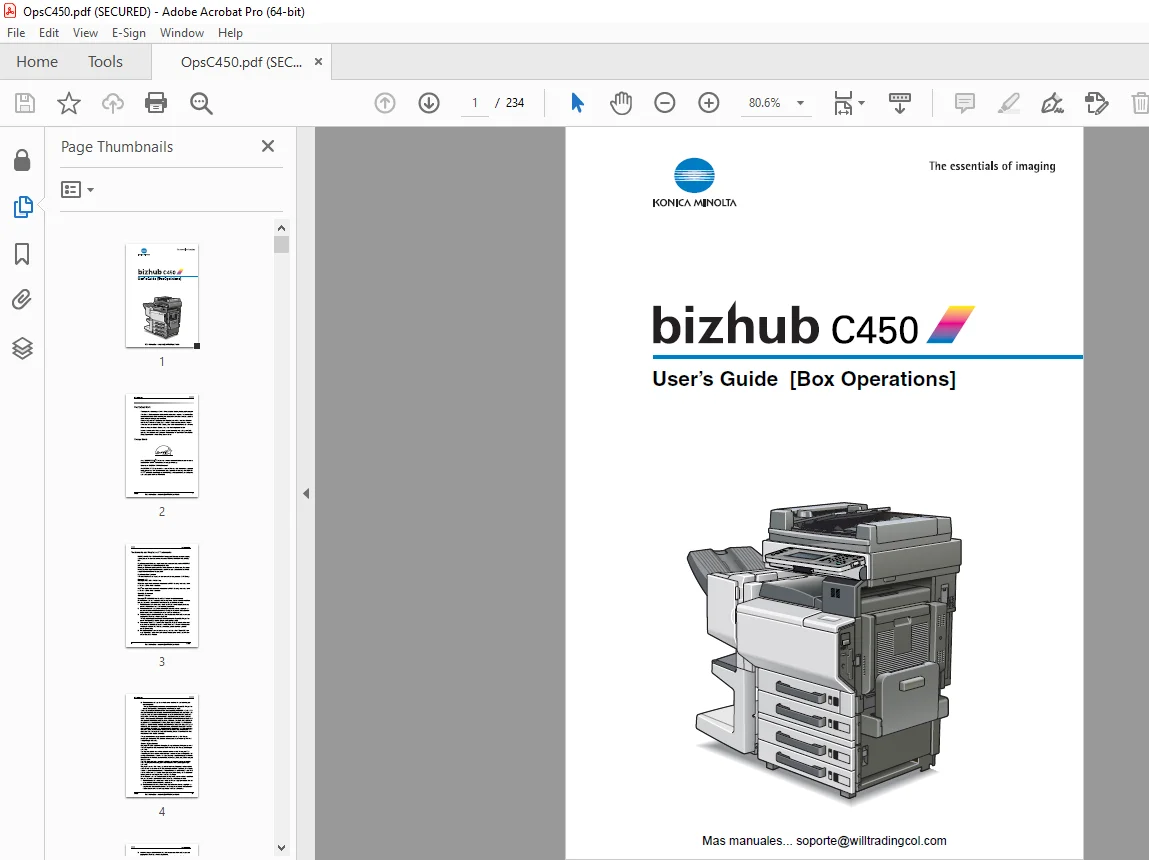
Konica Minolta bizhub C450 Box Operations Users Manual – PDF DOWNLOAD
$28.95
Konica Minolta bizhub C450 Box Operations Users Manual – PDF DOWNLOAD
Description
Konica Minolta bizhub C450 Box Operations Users Manual – PDF DOWNLOAD
FILE DETAILS:
Konica Minolta bizhub C450 Box Operations Users Manual – PDF DOWNLOAD
Language : English
Pages : 234
Downloadable : Yes
File Type : PDF
IMAGES PREVIEW OF THE MANUAL:
TABLE OF CONTENTS:
Konica Minolta bizhub C450 Box Operations Users Manual – PDF DOWNLOAD
Introduction 2
Energy Star® 2
What is an ENERGY STAR® Product? 2
Trademarks and Registered Trademarks 3
Contents 6
About This Manual 13
Structure of the Manual 13
Notation 13
Explanation of Manual Conventions 14
User’s Guides 15
User’s Guide [Copy Operations] 15
User’s Guide [Network Scanner Operations] 15
User’s Guide [Box Operations] <this manual> 15
User’s Guide [Enlarge Display Operations] 15
User’s Guide [Facsimile Operations] 15
User’s Guide [Print Operations] 15
Quick Guide [Print Operations] 16
CD-ROM Configuration 17
1 Overview of the Box Functions 23
11 Box Functions 23
Types of Boxes 24
12 Available Box Functions 25
Saving Documents 25
Moving/Copying Box Documents 25
Changing a Document Name 25
Deleting a Document 25
Changing Settings 25
Printing a Document 25
Transmitting a Document 26
Faxing a Document 26
Checking a Document from the Computer 26
Managing Box Documents from the Computer 26
13 Specifying Settings for Using the Box Functions 27
Registering and Specifying Settings for Boxes 27
2 Saving Documents 29
21 Information on Saving Documents 29
User Authentication 29
Registering Boxes 30
Naming Documents 30
22 Saving Copies in Boxes 31
Settings That Can Be Saved and Changed 31
Saving Copy Documents 32
23 Saving Sent/Received Faxes in Boxes 35
When Receiving Faxes 35
When Sending Faxes 35
Using a Box Destination 35
To save data to a box destination 36
To save data to the specified box 39
24 Saving Scans in Boxes 42
Using a Box Destination 42
To save data to a box destination 43
To save data to the specified box 44
3 Printing a Document from a Public User Box/Personal User Box 49
31 Displaying the Box Mode Screen 49
Viewing Documents Saved in Boxes 49
Searching for a Box Name 51
32 Deleting Document Data 52
To delete data 52
33 Changing the Document Name 53
To change the document name 53
34 Moving Document Data 54
To move a document 54
35 Copying Document Data 56
To copy a document 56
36 Printing Document Data 58
To print a document 59
To change the number of copies 60
To specify single-sided/double-sided printing 60
Specifying Finishing Settings 61
To specify the Finishing settings 61
To bind the copies at the center (“Fold & Staple” function) 63
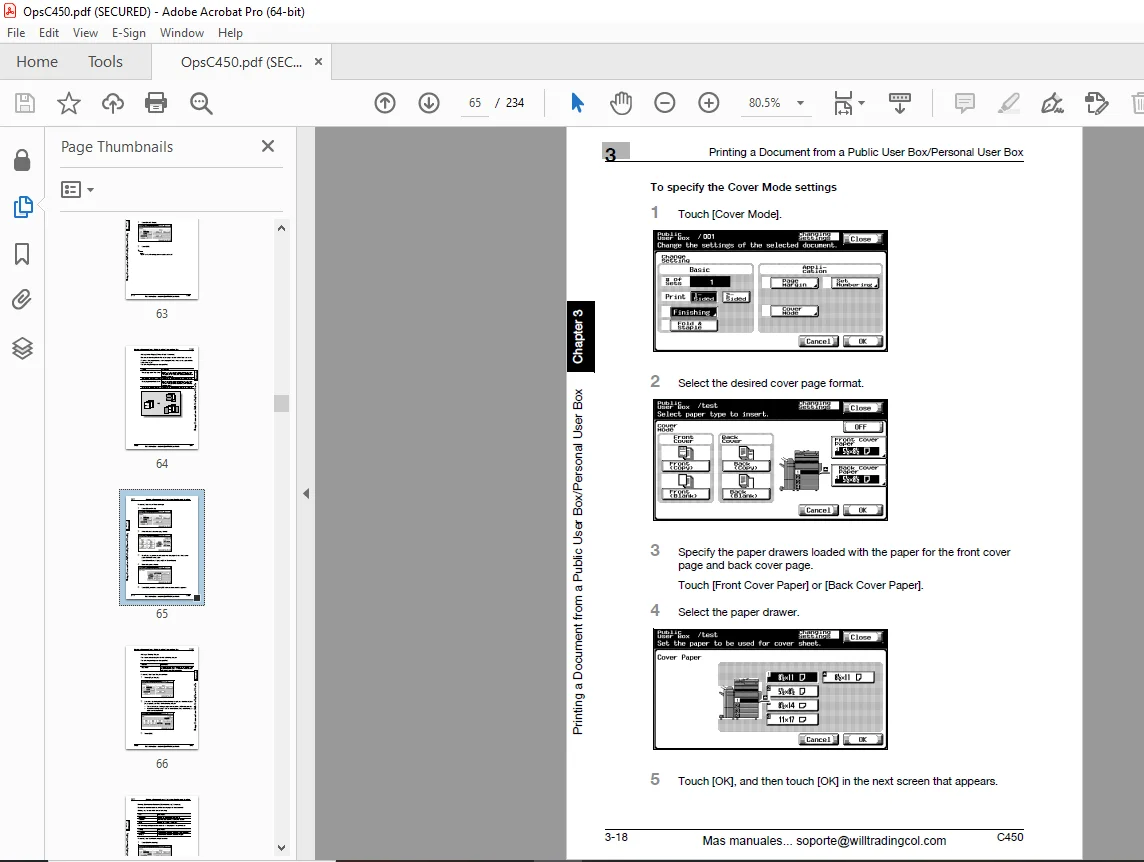
Adding Cover Pages (“Cover Mode” Function) 64
To specify the Cover Mode settings 65
Adding a Binding Margin 66
To specify the Page Margin settings 66
Printing Distribution Numbers (“Set Numbering” Function) 67
To specify the “Set Numbering” function 67
37 Printing a Proof Copy 69
To print a proof copy 69
38 Combined Printing 70
To print a document 71
To change the number of copies 72
To specify single-sided/double-sided printing 72
Specifying Finishing Settings 73
To specify the Finishing settings 73
To bind the copies at the center (“Fold & Staple” function) 75
Adding a Binding Margin 76
To specify the Page Margin settings 76
Printing Distribution Numbers (“Set Numbering” Function) 77
To specify the “Set Numbering” function 77
4 Routing a Document from a Public User Box/Personal User Box 81
41 Editing Document Data 81
42 Routing 82
Routing Types 82
Transmission Methods 82
Available Settings 83
To route data 83
43 Specifying Destinations 85
To specify a program as the destination 85
To select a destination from a group 86
To select a destination from the address book 88
Searching for a Destination 89
To directly specify the e-mail destination 90
Directly Specifying an FTP Destination 92
To directly specify an FTP destination 92
Directly Specifying an SMB Destination 94
To directly specify an SMB destination 94
44 Checking Settings Before Routing 96
Checking the Document Information 96
To check information 96
Specifying the File Format 98
To specify the file format 98
5 Faxing a Document from a Public User Box/Personal User Box101
51 Editing Document Data101
52 Faxing102
Methods for Specifying the Destination102
Available Settings102
To fax data103
53 Specifying Destinations104
To specify a program as the destination104
To select a destination from a group105
To select a destination from the address book107
Directly Specifying a Fax Destination (Direct Input)108
54 Checking Settings Before Faxing110
Checking the Document Information110
To check information110
Specifying Transmission Settings111
6 Printing Documents from the System User Box113
61 Bulletin Board User Box113
To print a document113
To delete a document115
62 Polling TX User Box117
To print a document117
To delete a document118
63 Memory RX User Box119
To print a document119
To delete a document120
To print a proof copy121
64 Secured Document Box122
To print a confidential document122
7 Importing Images from Boxes125
71 Features and Operating Environment125
Features125
Operating Environment126
72 Installing the HDD TWAIN Driver127
To install the software127
73 Importing Images128
To import images128
With user authentication130
With account track131
Main Window Views132
List View132
Thumbnail View133
Main Window Settings134
Specifying Settings from the Settings Dialog Box (Scan Tab)135
Specifying Settings from the Settings Dialog Box (Image Enhance Tab)136
74 Selecting Scanning Devices137
To select a device137
75 Registering New Scanning Devices139
Registering Devices139
To register a device140
Checking Authentication Information143
76 Changing the Scanned Box144
To change the scanned box144
8 Using PageScope Box Operator147
81 Using PageScope Box Operator147
Operating Environment147
Installing PageScope Box Operator147
82 Connecting to the Machine (MFP Controller)149
To connect to a box on the machine149
To view the status of the connection153
To connect to a different box154
To disconnect from a device156
To register a connection157
To delete a connection159
83 Displaying Documents161
Displaying Document Icons161
Displaying the Document Details162
Displaying the Document Thumbnails163
Checking Information164
Displaying Documents in a Separate Window165
To display a document166
84 Managing Documents167
To open the document in a specific application167
To change the document name167
To save a document onto the computer169
To delete a document170
To save a document in the compact PDF format171
To print a document172
85 Other Operations174
Specifying Cache File Settings174
To specify settings for the cache files175
To specify settings for temporary files176
Options178
To specify the settings178
9 Control Panel Settings181
91 Specifying Settings from the Control Panel181
Utility Mode Parameters181
92 Registering Boxes182
Administrators182
Registering Public/Personal User Boxes183
To register a box183
Registering Bulletin Board User Boxes186
To register a box186
93 Displaying the Administrator Setting Screen189
To display the Administrator Setting screen189
94 Specifying Box Administrator Settings191
To specify the “User Box Admin Setting” parameter191
95 Specifying HDD Setting Parameters194
To check the hard disk capacity194
To delete unused boxes195
To delete confidential documents196
To overwrite all data197
To specify the hard disk locking password199
10 Specifying Settings Using PageScope Web Connection203
101 Settings That Can Be Specified Using PageScope Web Connection203
User Mode203
Administrator Mode204
102 Using PageScope Web Connection205
System Requirements205
Accessing PageScope Web Connection205
Structure of Pages206
To log on to Administrator mode207
Web Browser Cache209
For Internet Explorer209
For Netscape209
103 User Box Tab (User Mode)210
User Box List210
File List211
Create Box212
User Box Admin213
104 User Box Tab (Administrator Mode)214
User Box Delete214
Reset User Box Password215
User Box Administrator Setting216
105 Network Tab (Administrator Mode)217
Authentication – User Authentication217
Authentication – Auto Logout218
11 Appendix221
111 Network Error Message List221
112 Entering Text222
To type text225
List of Available Characters225
113 Glossary226
114 Index230
DESCRIPTION:
Konica Minolta bizhub C450 Box Operations Users Manual – PDF DOWNLOAD
INTRODUCTION:
- This User’s Guide contains details on the operations required to use the Box functions of bizhub C450 and the precautions on their use. Carefully read this manual before using these functions.
- If software (such as Page Scope Job Spooler) other than that described in this User’s Guide is installed, data saved in a box can be retrieved from a computer on the network. For details, refer to the manual for each software.
- After reading this User’s Guide, store it in the designated holder. In order to ensure that this machine is used correctly and safely, carefully read the “Installation and Operation Precautions” in the C450 User’s Guide [Copy Operations] before using the machine.
About This Manual:
- This user’s guide covers the bizhub C450 box functions. This section introduces the structure of the manual and notations used for product names, etc.
- This manual is intended for users who understand the basic operations of PCs and the machine. For the operating procedures of Windows or Macintosh operating system and application programs, refer to the respective manuals.
Structure of the Manual:
This manual consists of the following chapters.
- Chapter 1 Overview of the Box Functions
- Chapter 2 Saving Documents
- Chapter 3 Printing a Document from a Public User Box/Personal User Box
- Chapter 4 Routing a Document from a Public User Box/Personal User Box
- Chapter 5 Faxing a Document from a Public User Box/Personal User Box
- Chapter 6 Printing Documents from the System User Box
- Chapter 7 Importing Images from Boxes
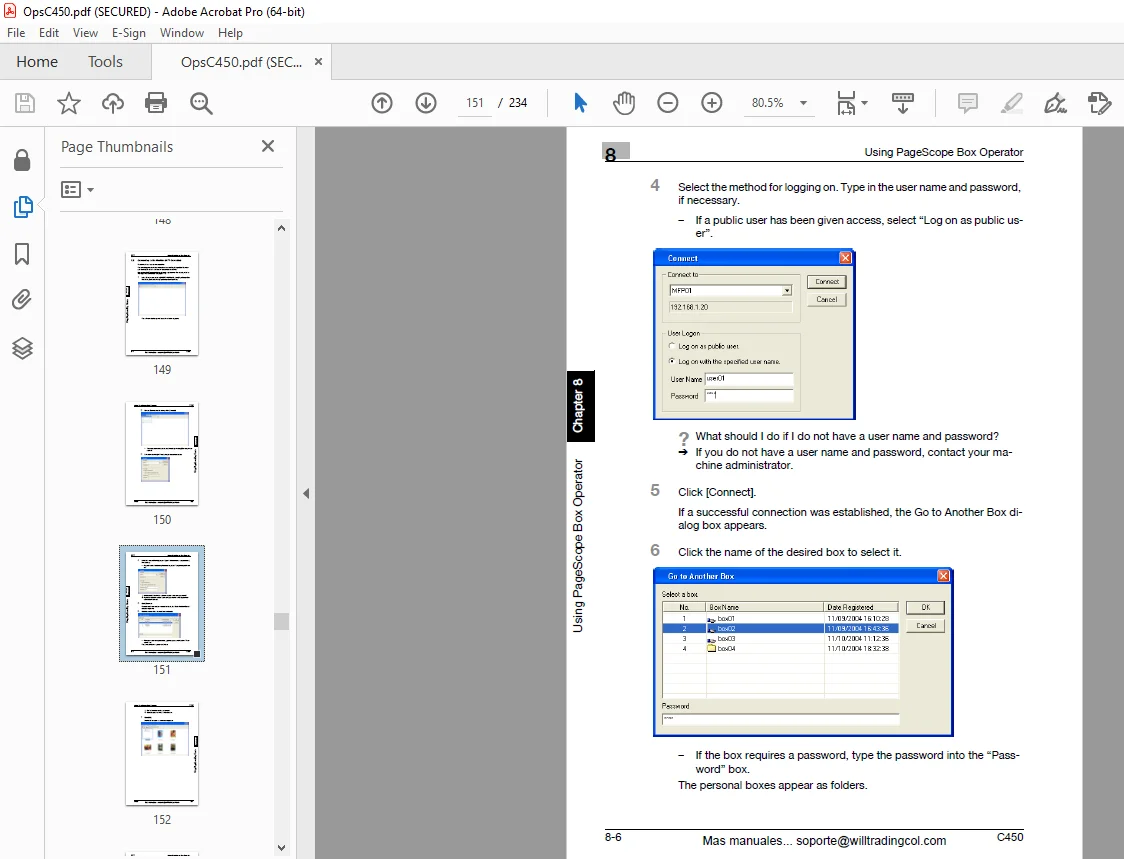
- Chapter 8 Using Page Scope Box Operator
- Chapter 9 Control Panel Settings
- Chapter 10 Specifying Settings Using Page Scope Web Connection
- Chapter 11 Appendix
G.B 28/02/25